
Scanning QR Codes on an iPhone is incredibly straightforward, thanks to the seamless experience across different iOS versions. Because Apple controls both the hardware and the software, the built-in scanning features are highly reliable. To help you navigate this, we’ve put together a comprehensive guide on scanning QR Codes effortlessly using your iOS device.
What are QR Codes and why do you need to scan them?
QR Codes were originally developed in Japan to overcome the limitations of traditional barcodes. While standard barcodes held very little data and were easily damaged, QR Codes revolutionized inventory systems with their high error tolerance and ability to hold 100 times more information. Their square shape allows them to be read both horizontally and vertically. With the rise of smartphones, QR Codes became accessible to everyone. Today, brands use them as a staple in their marketing strategies to instantly connect users to websites, menus, and digital content.
Which smartphones use iOS?
iOS is Apple’s proprietary operating system. It powers exclusively Apple hardware, most notably the iPhone, iPad, and iPod Touch line of devices.
How to check if your iPhone or iPad automatically scans QR Codes
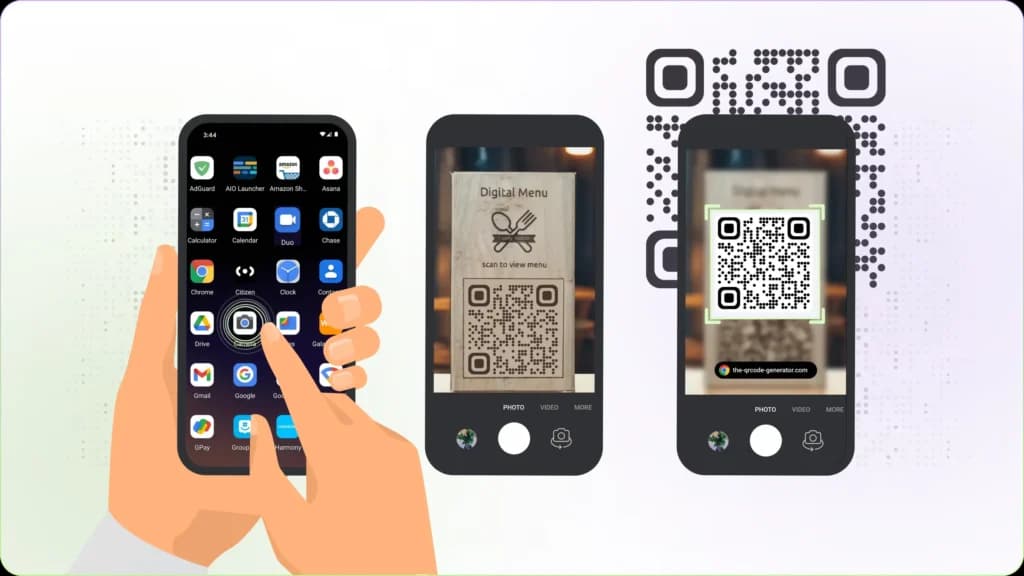
- Open your native Camera app and hold it steady over the QR Code for 2-3 seconds.
- If your device has scanning enabled by default, a notification banner will pop up.
- If nothing happens, you likely need to enable the feature in your device Settings.
- If the scanning option doesn't exist in your settings at all, your device might be running an older iOS version and will require a third-party QR reader app.
How to enable QR Code scanning on your iPhone or iPad
- Launch the Settings app from your home screen.
- Scroll down and select Camera.
- Locate Scan QR Codes and toggle the switch so it turns green.
That’s it! Your camera is now ready to scan. You can disable this feature at any time following the same steps.
How to scan QR Codes with your iPhone camera
- Open the Camera app (swipe left from the lock screen or tap the home screen icon).
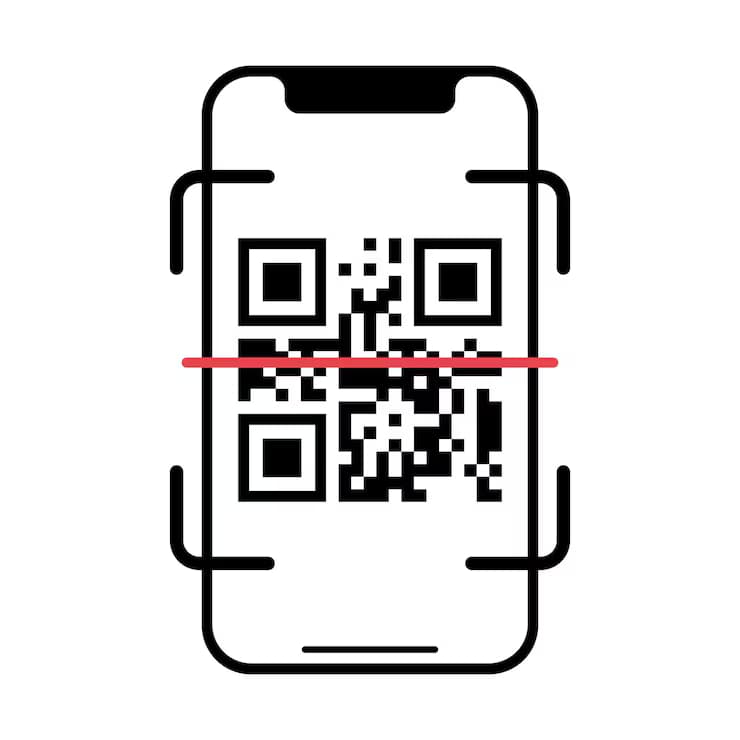
- Center the QR Code in the viewfinder and hold steady for a moment.
- Tap the pop-up notification to open the embedded link or content.
Depending on the code, you might be prompted to open a Safari link, connect to Wi-Fi, or save a vCard to your contacts.
Alternative methods for older iPhones (iOS 11 and earlier)
Using the Wallet App
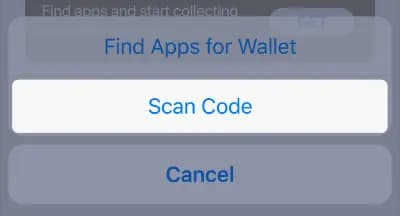
- Launch the Wallet app.
- Tap the "+" icon at the top right, or select "Scan Code" at the bottom.
- Align the QR Code within the on-screen square.
- If the code is compatible (like a boarding pass or ticket), it will be added. Otherwise, you'll see a "No Pass Available" message.
Using the Control Center
- Navigate to Settings > Control Center.
- Tap the green plus symbol next to the Code Scanner to add it to your quick menu.
- Swipe down to open your Control Center, tap the scanner icon, and focus it on the QR Code.
Recommended Third-Party Scanner Apps
- QR Reader for iPhone: A reliable, standard app that handles almost all QR and Barcode formats.
- QR Code Reader & QR Scanner: A highly-rated alternative featuring a convenient built-in flashlight.
- QR Code Reader & Barcode Scanner: Great for Apple ecosystem users; lets you sync scans via iCloud and works natively with Apple Watch.
Popular Apps with Built-in Scanners
- Snapchat: Used primarily for quickly adding friends.
- Shazam: Unlocks exclusive content, visual experiences, and partner offers.
- Pinterest: Allows visual searching via their "Lens" feature.
- WhatsApp: Instantly links your mobile account to WhatsApp Web.
- LinkedIn: Quickly share your digital resume or connect with peers.
- Facebook Messenger & Twitter: Easily pull up user profiles or share your own personal code.
💡 Pro Tip
Make Scanning Effortless
Ensure your QR Codes are clear, well-lit, and properly sized so iPhone users can scan them instantly using the native camera without needing extra apps.
Top QR Code Formats to Use Today
Dynamic QR Codes are highly recommended because they allow you to track campaign analytics, switch code types, and update background content without ever needing to reprint the physical code. Popular types include:
- PDF: Instantly share downloadable menus or guides.
- App Store: Route users to the correct download page.
- vCard Plus: Share a dynamic, editable digital business card.
- Social Media: Host a mobile-optimized landing page for all your profiles.
- Video / MP3: Stream multimedia content directly.
- Dynamic URL: Share a web link that you can change anytime.
- Image Gallery: Display a portfolio or product catalog.
- Event: Share itineraries with an automatic "Save to Calendar" option.
- Coupon: Distribute scannable, digitized discount codes.
- Feedback & Ratings: Direct users to surveys or collect star ratings.
- Google Forms: Streamline data collection and sign-ups.
- 2D Barcode: The modern upgrade to traditional UPC barcodes.
Real-World Marketing Examples
Consumer Packaged Goods
Betty Baker, an omnichannel baking goods brand, integrated Rating QR Codes onto their product packaging. This allowed them to capture immediate, point-of-use customer satisfaction metrics and prioritize their most loved products.
Restaurants & Hospitality
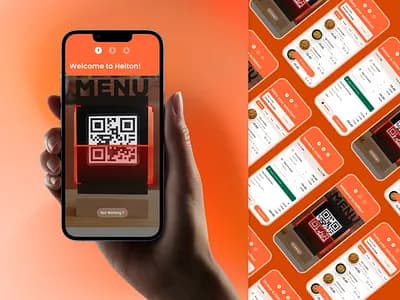
Restaurants utilize Feedback QR Codes directly on their table tents or menus, giving diners a frictionless way to review their meal before they even leave the building.
Finance & Corporate
Firms like Global Worth Trust network smarter by placing vCard Plus QR Codes on their physical business cards and conference badges, ensuring clients can save their contact info with a single tap.
Travel & Tourism
Agencies like Trekker Tours leverage Video QR Codes on storefront posters and physical brochures. This bridges the gap between print and digital, letting passersby instantly watch exciting customer experiences while tracking offline marketing ROI.