
Struggling to figure out how to scan QR Codes on your Android device? As one of the world's top mobile operating systems, Android powers a vast array of smartphones. Because the hardware varies by manufacturer, the scanning process depends heavily on your specific phone model and OS version. While newer models feature built-in camera scanning, older devices might still require a dedicated app. We’ve compiled a complete guide to help you scan QR Codes on virtually any Android phone.
What are QR Codes and why do you need to scan them?
QR Codes were designed as a powerful upgrade to traditional barcodes. Thanks to their square shape, they can be read horizontally and vertically, allowing them to store significantly more data. Before smartphones, QR Codes were primarily used with specialized scanners for inventory management. Today, scanning a QR Code with your phone’s camera or a reader app instantly connects you to websites, menus, contact cards, and exclusive digital content.
Which smartphones use Android?
Android is an open-source OS used by dozens of major manufacturers, including:
- Sony Xperia
- Google Pixel
- Nokia
- HTC
- LG
- Samsung Galaxy
- Huawei
- OnePlus
- Xiaomi
Tip: If you're unsure what operating system your phone uses, navigate to Settings → About Phone, or check your manufacturer's website.
💡 Pro Tip
Optimize for All Devices
Since Android devices vary, always test your QR Codes across different screen sizes and camera qualities to ensure a smooth scanning experience for all users.
How to check if your Android camera automatically scans QR Codes
- Open your default Camera app and point it steadily at the QR Code for 2-3 seconds.
- If scanning is natively enabled, a clickable notification will appear on your screen.
- If nothing happens, dive into your Camera Settings to see if there is a "Scan QR Codes" toggle you need to enable.
- If the option simply doesn't exist, your phone requires a third-party QR Code reader app.
Scanning on Older OS Versions
Android 6.0 ("Now on Tap")
- Install and open the Google App.
- Opt-in to enable the "Now on Tap" feature.
- Go to Settings → Screen search and toggle the top switch on.
- Hold your Home button to activate Now on Tap and scan the QR Code.
Android 7.0 and Below (Excluding 6.0)
These legacy versions do not support native QR scanning. You will need to download a third-party scanner from the Google Play Store.
Scanning QR Codes with Android 8.0, 9.0, and 10.0+
Google Screen Search
- Point your camera at the QR Code.
- Press and hold the Home button, then swipe up to reveal options.
- Select "What’s on my screen?" to view the QR Code's destination.
Google Lens (via Assistant or App)
- Hold your Home button to summon Google Assistant (or open the standalone Google Lens app).
- Tap the Lens icon (you may need to grant permission if it's your first time).
- Focus your camera on the QR Code to scan.
How to scan QR Codes with Samsung Galaxy
Using Bixby Vision
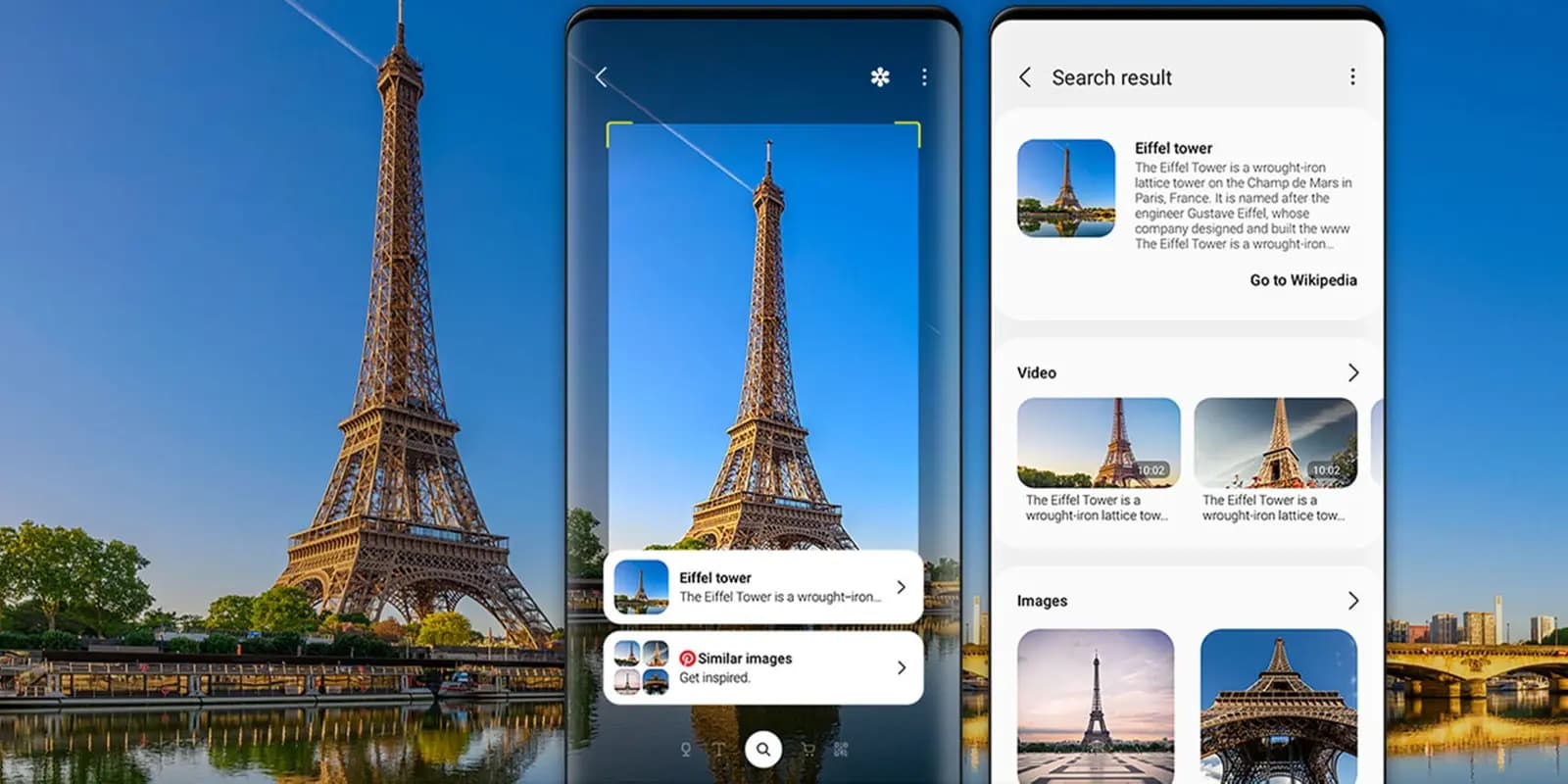
- Open the Camera app and tap Bixby Vision.
- Grant permission for Bixby to take pictures.
- Scan the QR Code and select "Go" to view the content.
Using Samsung Internet
- Open the Samsung Internet browser.
- Tap the hamburger menu (3 lines) → Settings → Useful Features.
- Toggle on the QR code reader.
- Tap the new QR icon in the address bar to open the scanner.
Using Samsung Camera (OS 9+)
- Swipe down to open your Quick Settings panel and tap QR Scanner.
- Point your camera at the code and tap the pop-up to view the content.
- Note: If this fails, open your Camera Settings and ensure "Scan QR codes" is toggled on.
Using the Gallery App
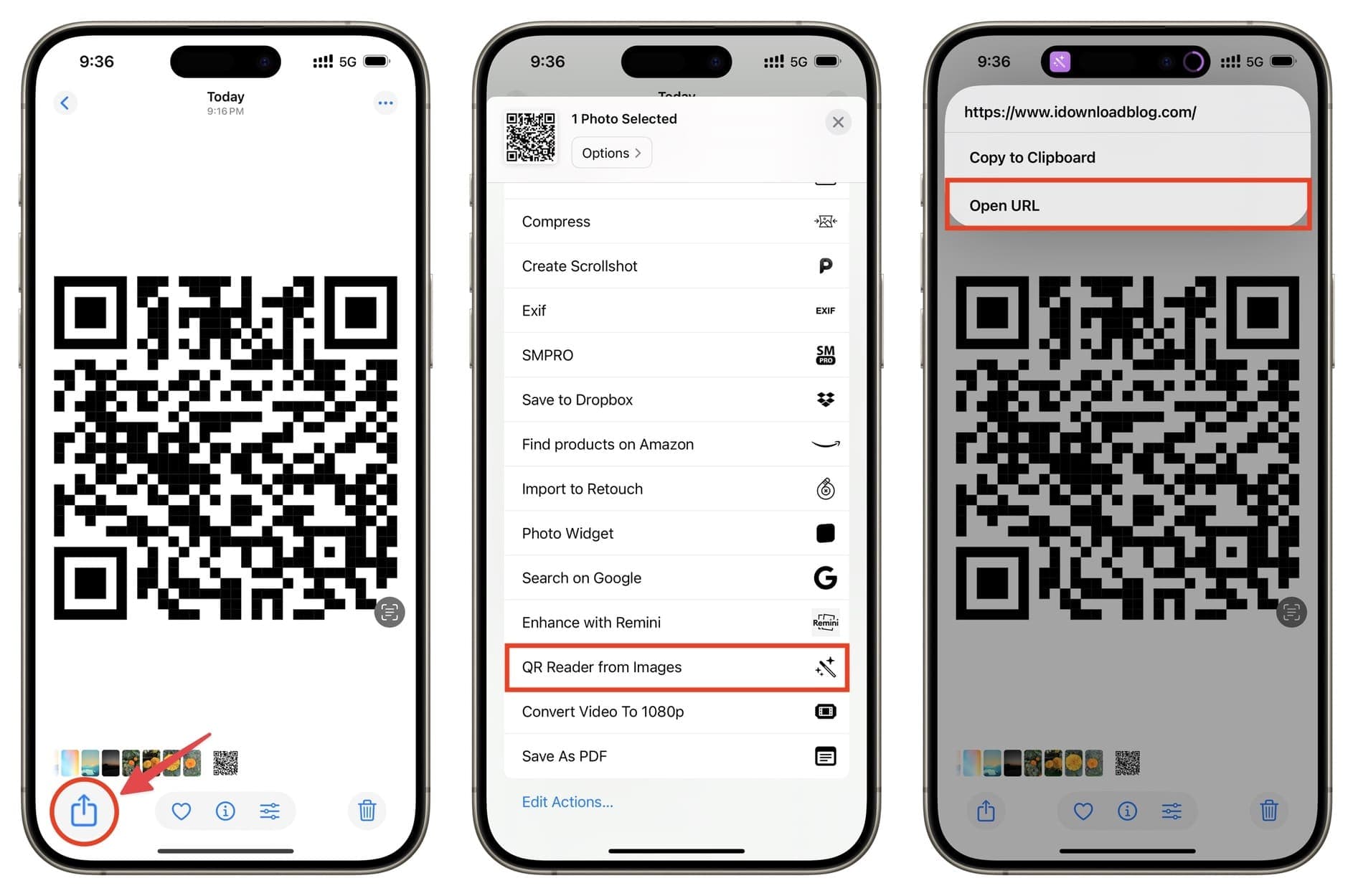
- Take a standard photo of the QR Code and open it in your Gallery.
- Select the Bixby Vision icon, then tap Lens to extract the code's data.
Scanning QR Codes with LG G6
- Hold the Home button to bring up Google Assistant.
- Tap the Google Lens button and point your camera at the QR Code.
Scanning QR Codes with Google Pixel
- Open the default Google Camera app.
- Navigate to Settings → More and ensure Google Lens suggestions are enabled.
- Focus your camera on the code to scan.
Scanning QR Codes with Sony Xperia
- Open the Camera app, tap the yellow camera icon, then the blue "i" button.
- Focus on the QR Code and snap a photo.
- Hold "Product details" and drag upward to view the embedded content.
Other Android Manufacturers
- HTC U11 & Nokia 8: Use the native Camera app directly. Alternatively, trigger Google Lens via Google Assistant.
- Huawei P30 PRO: Scan directly via the Camera app. From the lock screen, pull down the function bar and select Huawei Vision. In the Gallery app, open an image, tap More, and select "Scan QR code in image."
- OnePlus 7T PRO & Xiaomi Mi 9T PRO: Use the default Camera app. A pop-up will appear when focused on a code. For Xiaomi users, ensure "Scan QR codes" is enabled in Settings → System Apps → Camera.
Recommended Third-Party Scanners (Google Play)
- Google Lens: The gold standard for scanning codes, text, and physical objects.
- QR & Barcode Scanner: A highly-rated, robust app for standard decoding.
- QR Scanner: Barcode Scanner: A lightweight, fast app that handles multiple formats efficiently.
Popular Apps with Built-in Scanners
- Snapchat: Scan unique Snapcodes to add friends instantly.
- Shazam: Unlocks exclusive artist content and partner offers.
- Pinterest: Visual search capabilities using their "Lens" tool.
- WhatsApp: Links your phone to the desktop web app.
- LinkedIn: Quickly share your professional profile at networking events.
- Twitter & Facebook Messenger: Add friends and share profiles effortlessly.
Common QR Code Types You Can Scan
- Website URL: Directs you to a webpage.
- Social Media: Groups multiple social profiles on one page.
- Coupon: Stores digital discounts.
- vCard Plus: A downloadable digital business card.
- Business Page: Shows operating hours and company info.
- Feedback & Ratings: Forms for customer reviews.
- Video / MP3: Streams multimedia directly.
- Event: Saves ticketing info and calendar dates.
- PDF: Opens downloadable documents or menus.
- App: Routes to the Google Play Store for downloads.
- Images: Displays an image gallery.
- Bitcoin: Facilitates cryptocurrency transactions.
- WiFi: Connects to a network without typing a password.
Marketing with QR Codes: Real-World Examples
Consumer Electronics
Siekens Electronics printed Rating QR Codes right on their boxes, giving customers a frictionless way to access setup manuals and leave immediate product reviews.
Software & Game Developers
eGo Gaming Studios utilized Dynamic URL QR Codes across their physical print ads to funnel offline readers directly into their digital landing pages and app store listings.
Real Estate Agencies
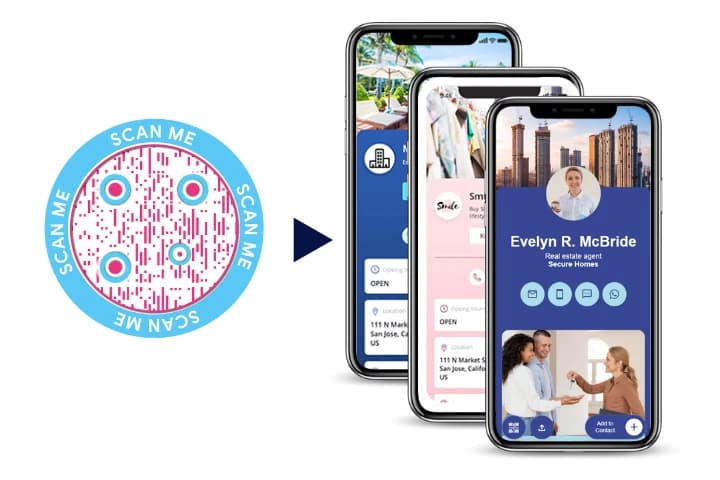
The Home Finders attached Event QR Codes to "For Sale" signs in front yards, allowing prospective buyers walking by to instantly register for upcoming open houses.
Healthcare & Doctors
Dr. Andrew Webber's clinic added Feedback QR Codes to patient discharge paperwork, significantly boosting the volume of positive reviews collected after successful appointments.
Gyms & Wellness Studios
Studio Gym placed Coupon QR Codes on street billboards. This not only drove foot traffic by offering a free trial class but also allowed them to track the exact ROI of their outdoor advertising.