
In just a few seconds, you can learn how to create free QR Codes for any print or digital medium. Whether it's for your business, classroom, or personal use, our generator makes the process incredibly simple—no graphic design skills required. Let's cover the basics of creating a standard QR Code before diving into the advanced customization options.
How to create a QR Code for a link
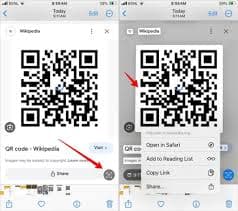
This is the most common use case: a QR Code that opens a website link when scanned. Just follow these steps:
- Choose the URL option: In the QR Code selection tab, select "URL" as your type.
- Enter your link: Copy your destination website address and paste it into the provided field. Your QR Code will generate automatically in real-time.
- Download your code: If you don’t need any custom design changes, simply hit "Download." The file will save as a high-quality JPG, ready for immediate use.
Tips to attract more scans with good design
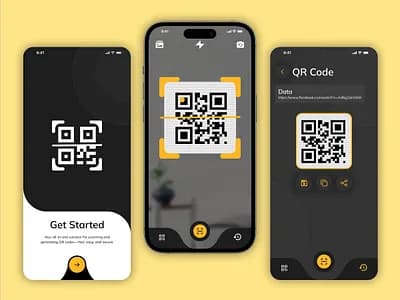
You can make your QR Code stand out by customizing its appearance. Best of all, no design experience is needed!
- Add a 'Scan Me' frame: Wrap your code in a call-to-action frame so users know exactly what to do.
- Modify the pattern shapes: Adjust the internal small squares and corner eyes to make your QR Code visually unique.
- Pick a brand color: Use the color picker to select from millions of HEX codes. Tip: Stick with darker shades against a light background to ensure high scannability.
- Insert a logo: Place your company logo or a custom icon right in the center to build brand trust and awareness.
💡 Pro Tip
Keep It Simple and Actionable
Focus on clarity when creating QR Codes. Choose a clear destination, use a strong call-to-action, and test before sharing to ensure maximum effectiveness.
How to use a QR Code correctly
QR Codes are incredibly versatile and can be printed on business cards, brochures, product packaging, point-of-sale displays, and more. Whether you’re a healthcare provider, restaurateur, consultant, or running a nonprofit, there is a use case tailored to your field.
Pro Tip: Integrate QR Code placeholders early in your print design planning stage. You can always link the final content right before you go to print.
Things to consider before printing
Always run through this pre-flight checklist to avoid expensive reprints, typos, and broken links:
- Test thoroughly: Always scan your QR Code with multiple devices after generating it and before sending it to print. Remember, standard Static QR Codes cannot be edited once created.
- Maintain minimum sizing: To ensure mobile cameras can read it, never stretch the square shape and print it no smaller than 2 cm x 2 cm (0.8 in x 0.8 in).
- Check export quality: Ensure your downloaded image file remains crisp and high-resolution when placed into your design software (like Illustrator or InDesign).
- When in doubt, go PRO: If you need flexibility, consider using a Dynamic QR Code. This allows you to edit the destination link even after printing, track scan analytics, and get dedicated support.