
QR Code And Barcode
Generator
December 28 , 2023
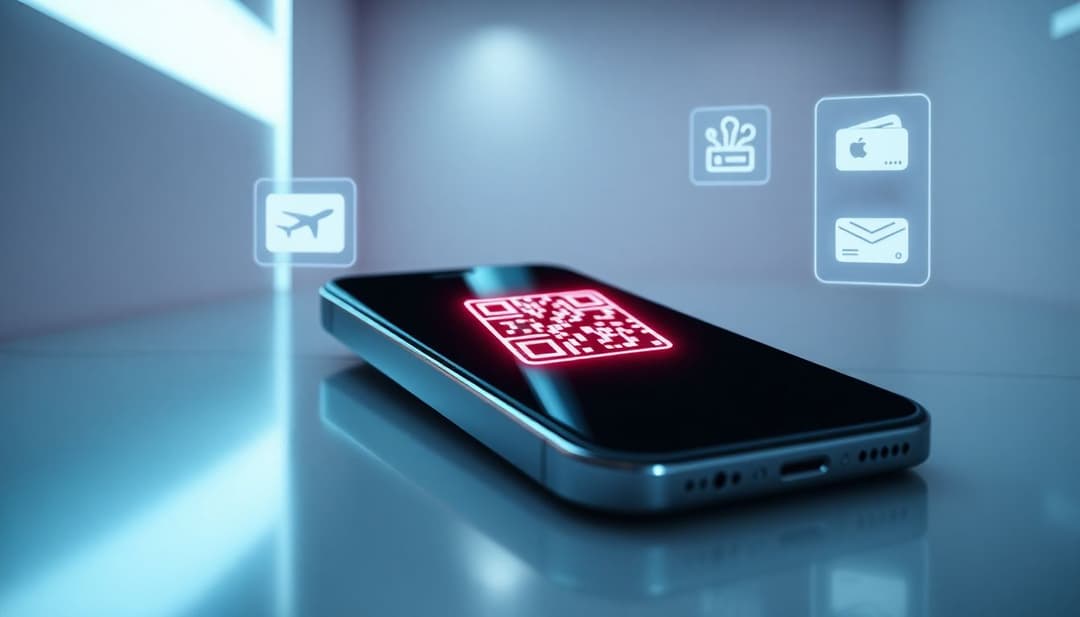
The way we carry around IDs, tickets, and rewards has shifted a lot lately.Digital wallets now make managing these things easier than ever. With Apple Wallet, you can store many important passes right on your phone. Adding QR codes to your wallet makes this even better. It lets you go contactless, quick, and secure. This guide will show you how to add QR codes to Apple Wallet and show practical ways to use them. You’ll also find helpful tips to get the most out of your digital passes.
Apple Wallet is one of the most popular digital wallets, with over 60.2 million users in the United States alone.
Apple Wallet is an app built into your iPhone. It keeps everything from boarding passes to loyalty cards all in one place. The app is easy to use and keeps your information safe. You need a compatible iPhone and the latest iOS to add QR codes. Most newer devices work perfectly.
QR codes are those black-and-white boxes you scan with your phone camera. They make it simple to share info or verify your identity without contact. Many passes in Apple Wallet use QR codes to speed up entry or transactions. They support different types of QR codes, like static ones for tickets or dynamic ones for updates.
First, you need a QR code that fits Apple Wallet. Many services can generate these, like your favorite event ticket platform or loyalty program. Make sure the code is clear, high-resolution, and in a standard format like PNG or JPEG. This helps ensure your phone can scan and recognize it easily.
The simplest way is through official passes. Many event organizers or store apps give you options to add passes directly. Just tap the link or scan the QR code with your camera, and it will open in Wallet. Some third-party apps also help create personalized passes with your QR codes. These usually let you customize the design and update the info later. Try platforms like PassKit or PassSource.
Sometimes, you get an email or message with a pass link. Tap it, and your phone will prompt you to add it to Wallet. You can also scan a QR code directly with your camera, which opens the pass for adding. If it doesn’t work, check if the pass is compatible or update the app.
Problems usually happen when a QR code is blurry or outdated. Ensure your pass supports the latest version of Apple Wallet. If a QR code isn’t working, try re-downloading or regenerating it. Keep your iOS updated for the best compatibility.
Several online tools help you craft custom passes. Popular options include PassKit, Wallet Creator, or Pass2U. These platforms often walk you through designing your card, including adding your logo, relevant info, and the QR code.
Your pass should look neat and match your brand or style. Make sure the QR code is large enough to scan easily. Add your logo and important details so users recognize it instantly. Always test the code with your phone to verify it works smoothly and is secure.
Update your pass whenever the QR code changes—like new discounts or updated tickets. Keep track of expiration dates and re-issue passes as needed. Regularly check that your QR codes still work and provide links to valid information.
Whether it’s a concert, sports game, or play, QR codes make entry quick. You just show your phone at the gate, scan, and go. This reduces lines and contact. Many venues now rely more on contactless entries to keep everyone safe.
Frequent coffee shop visitors and gym members love using mobile cards. Instead of carrying around plastic, your loyalty points or memberships are always handy. When you make a purchase, just scan your QR code and earn rewards or access exclusive areas.
Gift cards and coupons are perfect for QR codes. You can load a gift card into Wallet and use it at checkout.Discount vouchers stored on your iPhone save paper and time. Plus, they’re easy to update or replace if needed.
Experts predict that QR codes will keep growing in use for payments and rewards. Dozens of studies show more stores and event venues adopting contactless options. Soon, you might see NFC and blockchain tech working alongside QR codes for even better security and convenience.
Always keep your QR codes up to date. If a code expires, get a new one. Protect sensitive info by locking your device and using secure passes. Don’t share your passes casually—security is key.
Design passes that are clear and easy to use. Add your branding so people recognize them instantly. Use analytics tools to learn how people engage with your passes. Make sure your passes work across different devices and platforms.
Adding QR codes to your Apple Wallet unlocks many benefits. You get faster check-ins, easier rewards, and a safer way to pay. It’s a smart move for both personal convenience and business growth. Start exploring how QR codes can solve many everyday needs and improve your experience.
Ready to make your own passes with QR codes? Begin creating customized wallets today using trusted tools. Share your success stories and tips with others. The future of mobile passes is here—embrace it and enjoy the convenience.
Discover how cafés can use QR codes for digital menus, marketing campaigns, loyalty programs, and more. This ultimate guide covers creative, practical uses to boost customer experience and streamline operations.
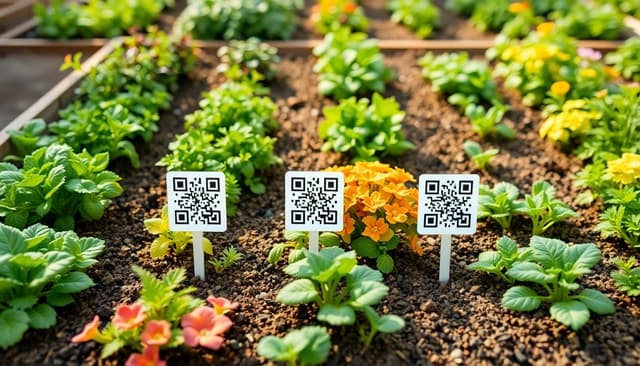
Explore 5 smart ways to use QR codes in gardening and plant care—from plant ID and care tips to garden tours and DIY guides. Make your green space more interactive and informative.
Learn how QR codes can securely store and share rental history for tenants and landlords. Streamline background checks, rental applications, and property management with ease.